Before you buy or download a big PC game, it is worth two minutes to check your hardware against its requirements. Windows has everything you need built in.
Step 1: Find your processor, RAM and Windows version
Open Settings → System → About. Under Device specifications you will see your Processor and Installed RAM; under Windows specifications you will see your edition and version.
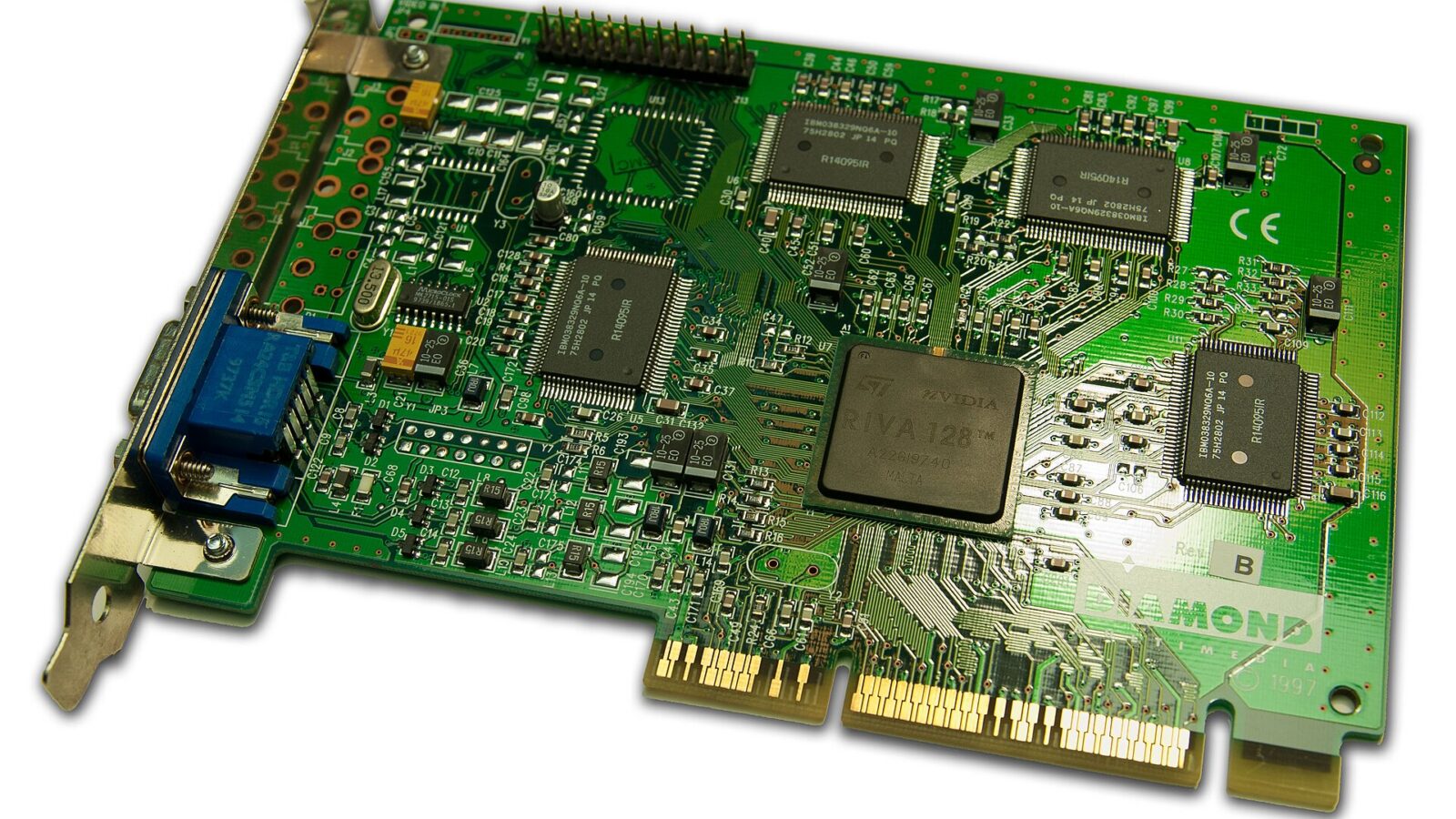
Step 2: Find your graphics card
- Press Windows + R, type dxdiag and press Enter.
- Open the Display tab. The name of your GPU and its memory are shown there. The System tab also shows your DirectX version.
Alternatively, open Task Manager → Performance and select GPU.
Step 3: Check your free storage
Open Settings → System → Storage, or check drives in File Explorer. Many modern games need 100 GB or more, and some recommend an SSD.
Step 4: Compare with the game’s requirements
Store pages on Steam, the Xbox app and other launchers list minimum and recommended requirements.
- Minimum usually means the game will run at low settings and lower resolution.
- Recommended is closer to a smooth experience at medium–high settings.
- Compare GPUs within the same generation and brand where possible; a higher model number in an older series is not always faster.
Step 5: Use the in-game tools
Many games include a benchmark or auto-detect graphics option. Run it first, then adjust. Updating your graphics driver can also improve performance in new releases.
Buying on Steam?
Steam’s refund policy generally allows a refund request within 14 days of purchase if you have played less than two hours — useful if a game runs poorly. Check Steam’s current refund policy before relying on it.